Communication of Apps for End Users
Both mobile and desktop apps, on any operating system, allow end users to access their purchased content. It is essential to communicate the availability of these resources and how to access them.
Communication in stores
In the storefronts, a banner will appear above the footer with information about the available apps for that tenant. Additionally, the product page will also display a banner with the same information.
This is an example of a banner with the options to download Publica.la Reader in Windows, Android and iOS:

Behavior Rules
The banner varies depending on the operating system from which it is accessed:
- Mac OS: Only the App Store and Play Store buttons are shown.
- Windows PC: Desktop App, App Store, and Play Store buttons are shown.
- iPhone: Only the App Store button is shown.
- Android: Only the Play Store button is shown.
Communication via Email
For every purchase, we send an email with information about the acquired content. In this email, we also share the apps where the end user can access the content.
For now, the Desktop link is not shown in this email. It will be available soon.
How to Customize the Communication
From Publica.la Nova Dashboards, on the page of the tenant to be configured, select the action edit.
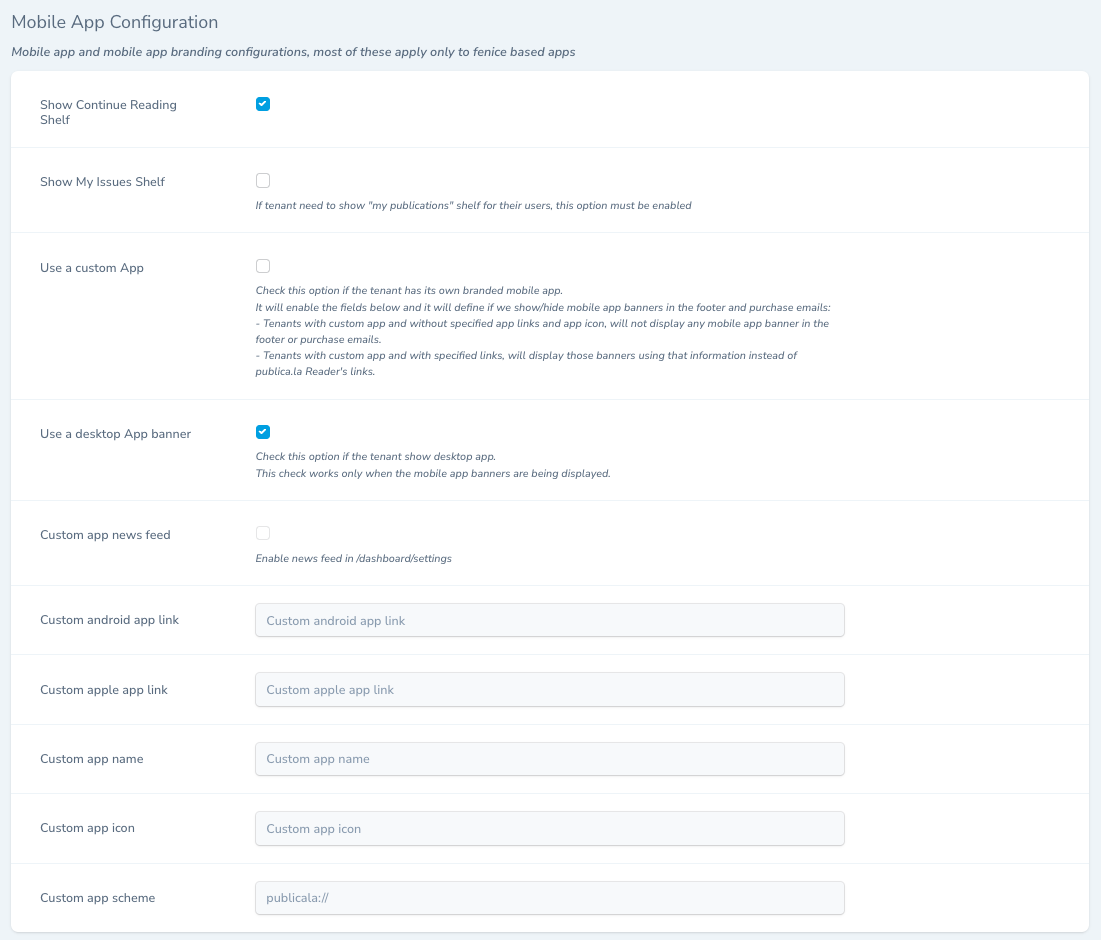
In the Mobile App Configuration section, you will find the following fields to load or check:
- Use a custom App
- Use a desktop App banner
- Custom android app link
- Custom apple app link
- Custom app name
- Custom app icon
- Custom app scheme
Different configurations can be set:
Only Publica.la Reader Mobile
No configuration is necessary. This is the default option.
Publica.la Reader Mobile and Desktop
Check Use a desktop App banner (and Use a custom App must be unchecked).
Branded Mobile Apps
Check Use a custom App and complete the fields:
- Custom android app link
- Custom apple app link
- Custom app name
- Custom app icon
- Custom app scheme
Branded Mobile and Desktop Apps
This option is not yet available.
Do Not Show Banner
If the tenant does not want any banner to be shown, select Use a custom App and do not complete any of the required fields for custom apps.
System Requirements
For the best user experience, please ensure your clients are aware of the minimum system requirements for our applications:
Mobile Applications
- iOS: Version 15.5 or later
- Android: Version 8.0 or later
Desktop Application
- Windows: Version 10 or later